Tasks
The tasks view allows you to see tasks across multiple projects. Each one of the rows contains a brief summary of the task, its status, and the project associated to it.
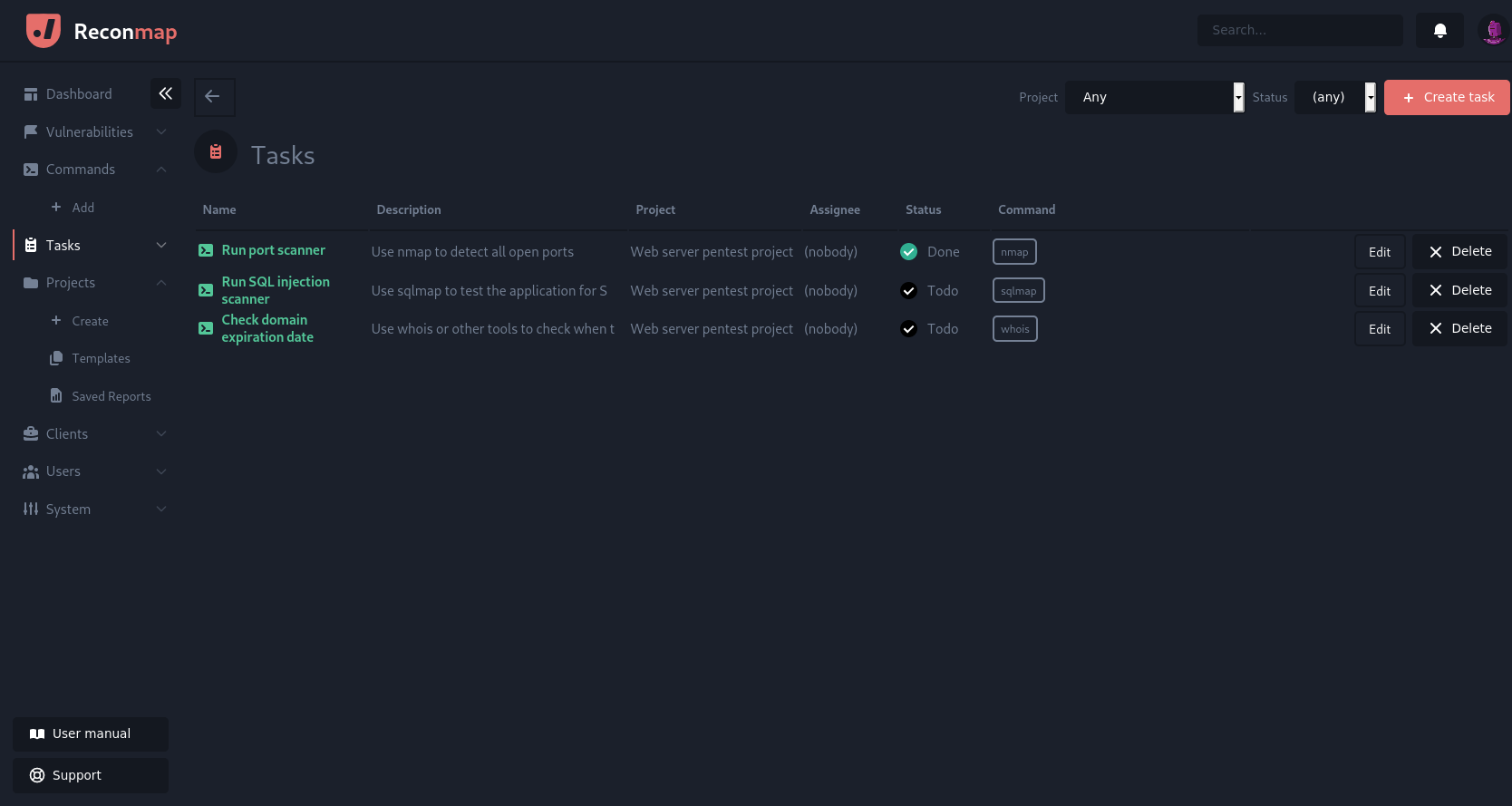
There are filters available on the same screen to narrow down the list to tasks for an specific project, or with an specific status (OPEN or CLOSED).
Task status
A task's status is one of Todo, Doing or Done. To change it, open the task and pick a new value from the Status dropdown in the page header. The change is saved immediately.
The same Status dropdown is available when creating or editing a task, so you can set the initial status of a new task (it defaults to Todo).
Task comments
Open a task and select the Comments tab to leave a comment on it, for example to record a blocker or a hand-off note for the next person. Comments work the same way as on projects and findings: they support Markdown, are listed newest first, and can be deleted by their author, administrators and superusers. See Comments for details.